

Zapier Integration
Integrate HITL.sh with Zapier to connect human decision-making with over 7,000 apps and services. Perfect for teams who want powerful automation without writing code.Before configuring Zapier, install the HITL.sh mobile app (App Store | Google Play) since it’s an integral part of the setup.
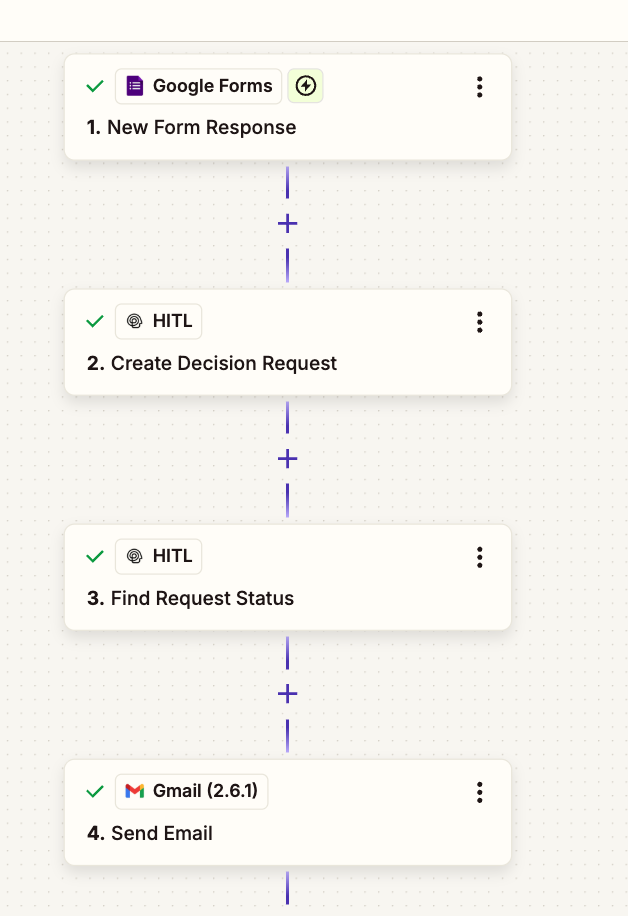
Why Use Zapier with HITL.sh?
7,000+ App Integrations
Connect HITL.sh with popular tools like Gmail, Slack, Google Sheets, Airtable, and more
No-Code Automation
Build powerful workflows without writing a single line of code using visual interface
Multi-Step Workflows
Create complex automation sequences with conditional logic and multiple actions
Instant Setup
Get started in minutes with pre-built templates and intuitive configuration
Available Actions
HITL.sh provides two powerful actions in Zapier:- Create Request
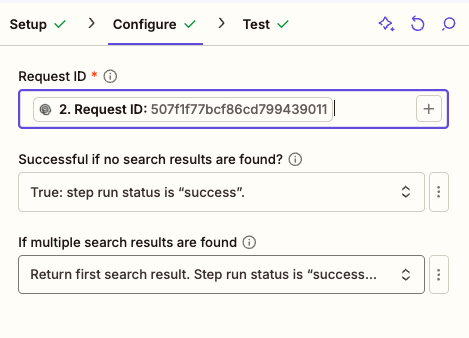
- Get Request Status
Create Request Action
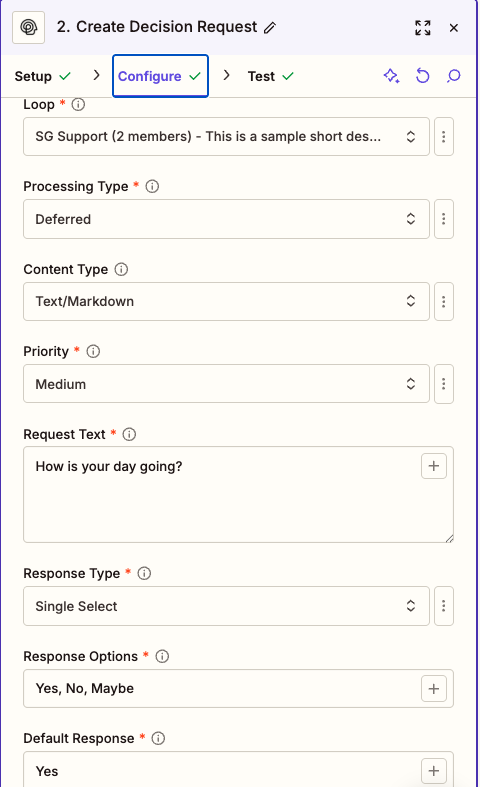
Submit content for human review directly from your Zaps: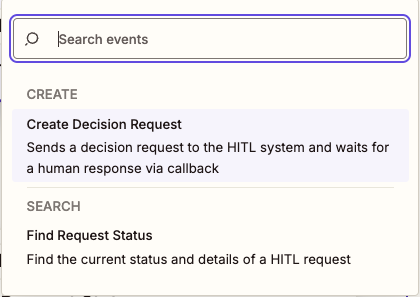
- Content moderation from form submissions
- Approval workflows from CRM updates
- Quality checks from data entries
- Escalation from support tickets
1
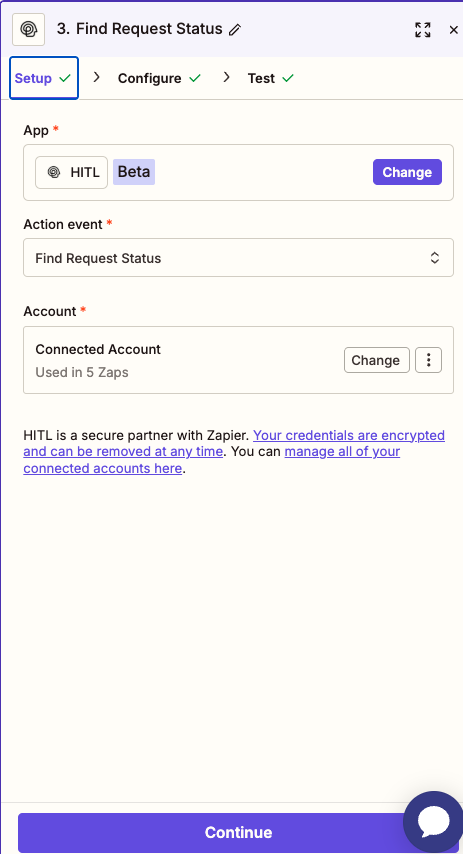
Add HITL.sh Action
Search for “HITL.sh” and select “Create Request” action
2
Authenticate
Connect your HITL.sh account using your API key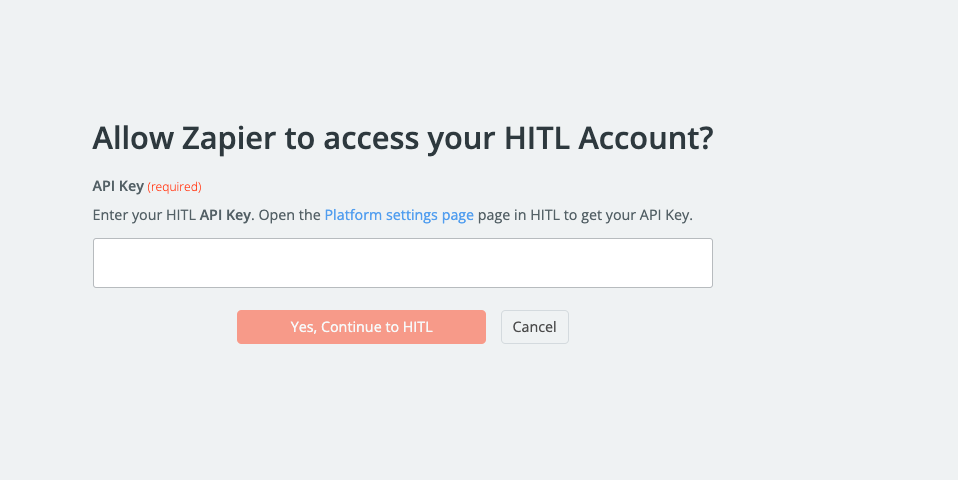
3
Configure Request
Set up your request parameters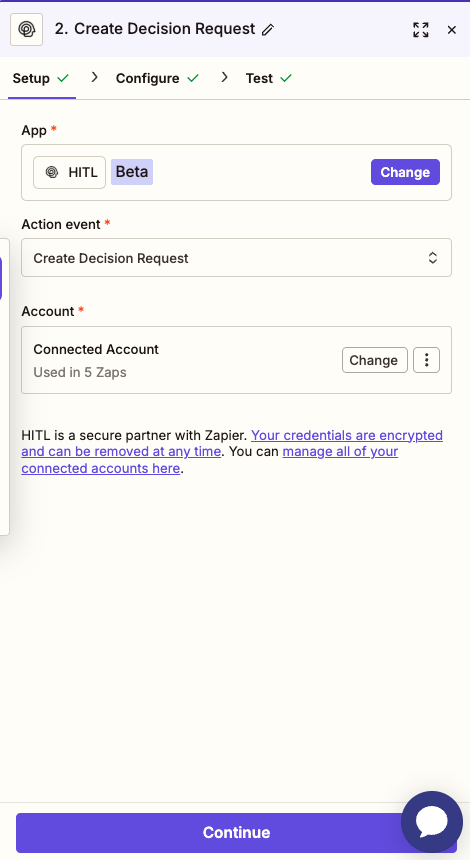
4
Test & Activate
Test your Zap and turn it on to start automating
Supported Response Types
Configure how reviewers respond to your requests:Text Response
Text Response
Free-form text with character validation:Configuration:Example Response:
"The proposal looks solid but needs budget clarification in section 3."Single Select
Single Select
Choose one option from a list:Configuration:Example Response:
"approve"Multi Select
Multi Select
Choose multiple options:Configuration:Example Response:
["accuracy", "grammar"]Rating
Rating
Numeric scale rating:Configuration:Example Response:
4.5Number
Number
Numeric input with validation:Configuration:Example Response:
149.99Boolean
Boolean
Simple yes/no decision:Configuration:Example Response:
trueRequest Configuration
Required Fields
string
required
The unique identifier of your HITL loop
string
required
The content or question for reviewers
select
required
Choose from: text, single_select, multi_select, rating, number, boolean
object
required
Configuration object for your chosen response type
Optional Fields
select
default:"time-sensitive"
time-sensitive (urgent) or deferred (non-urgent)select
default:"medium"
Priority level:
low, medium, high, or criticalnumber
Time limit before default response is used (60-86400 seconds)
varies
Fallback value if request times out
object
Additional metadata in JSON format
Status Codes
When retrieving request status, you’ll receive one of four status codes:pending
Waiting for reviewer response
completed
Reviewer has submitted response
timeout
Request timed out, default response applied
cancelled
Request was cancelled before completion
Example Workflows
Content Approval from Google Forms
Automatically send form submissions for human review: Trigger: New Google Forms Response Action 1: HITL.sh Create RequestSlack Message Moderation
Monitor Slack channels and flag inappropriate content: Trigger: New Message Posted in Slack Filter: Message contains flagged keywords Action 1: HITL.sh Create RequestCustomer Refund Workflow
Handle refund requests with human oversight: Trigger: New Row in Airtable (Refund Requests) Filter: Amount > $100 Action 1: HITL.sh Create RequestUsing Paths for Conditional Logic
Zapier Paths allow you to handle different response types:Best Practices
Test Thoroughly
Always test your Zaps with sample data before going live
Use Filters
Add filters to control when requests are created
Error Handling
Set up error notifications to catch failed Zaps
Monitor Usage
Track your Zapier task usage to stay within limits
Troubleshooting
Authentication Failed
Authentication Failed
Solution:
- Verify API key is correct
- Regenerate API key if needed
- Check API key permissions in HITL dashboard
Invalid Loop ID
Invalid Loop ID
Solution:
- Confirm loop exists in your HITL dashboard
- Copy Loop ID directly from loop settings
- Check for extra spaces in the field
Zap Not Firing
Zap Not Firing
Solution:
- Check trigger conditions are met
- Verify Zap is turned ON
- Review Zap history for errors
- Test trigger manually
Pricing Considerations
Zapier integration uses your Zapier task quota. Each action (Create Request, Get Status) counts as one task. The workflow uses polling to wait for human responses before ending execution.
Next Steps
n8n Integration
Explore n8n for more advanced automation capabilities
Make Integration
Learn about Make.com with webhook triggers
API Reference
View complete API documentation
Community Templates
Browse Zapier templates shared by the community