Most reviewers answer on their phone. The HITL app sends a push notification for each request and shows the question with the right controls for the answer type. Download: hitl.sh/download (App Store and Google Play).

Sign in

Use Continue with Apple, Continue with Google or Continue with email (a one-time code). Use the same email you were invited with, so the workflows you were invited to are there.
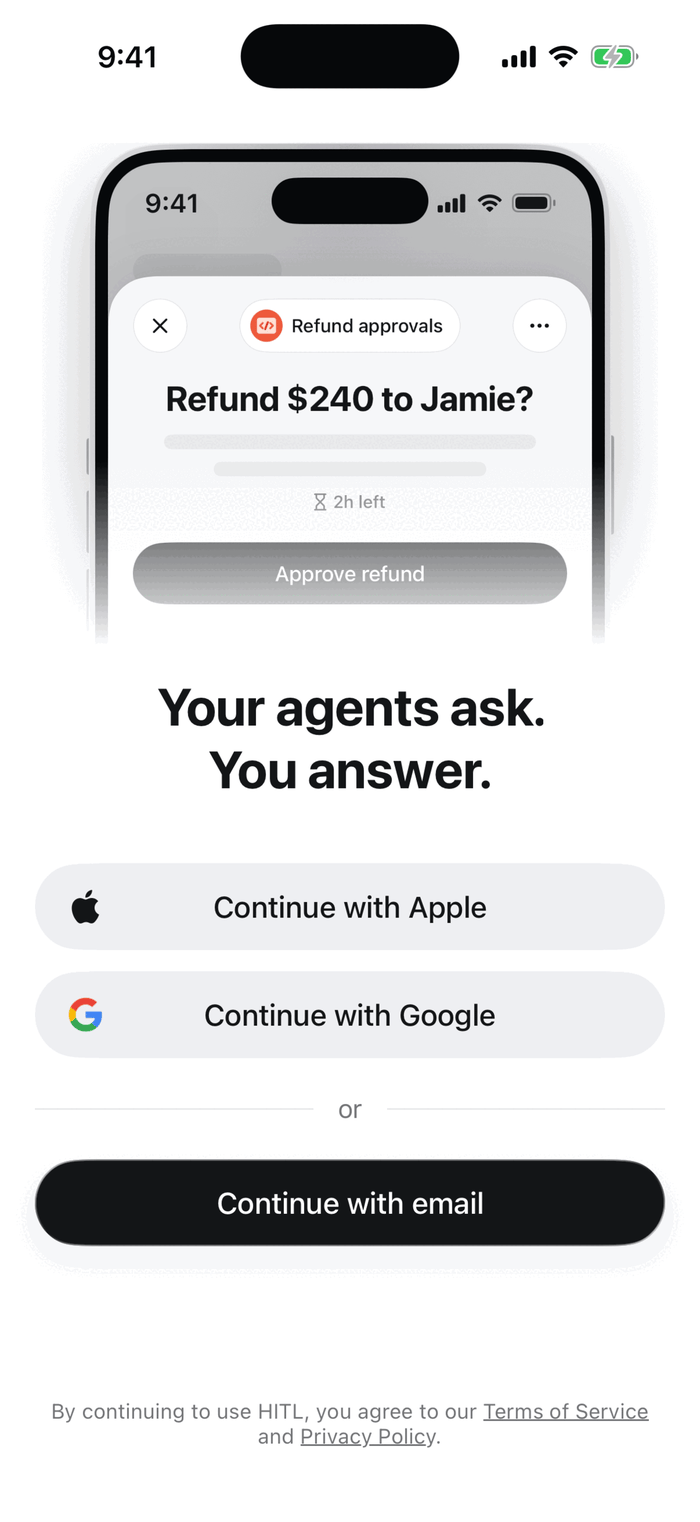
The HITL app sign-in screen: Your agents ask. You answer. With Continue with Apple, Continue with Google and Continue with email

Join a workflow

Accept the email invitation, tap an invite link (hitl.sh/invites/...), scan the workflow’s QR code, or tap + on the Workflows tab and type the join code. You see the workflow’s name, description and how many people review it, then tap Join this workflow.
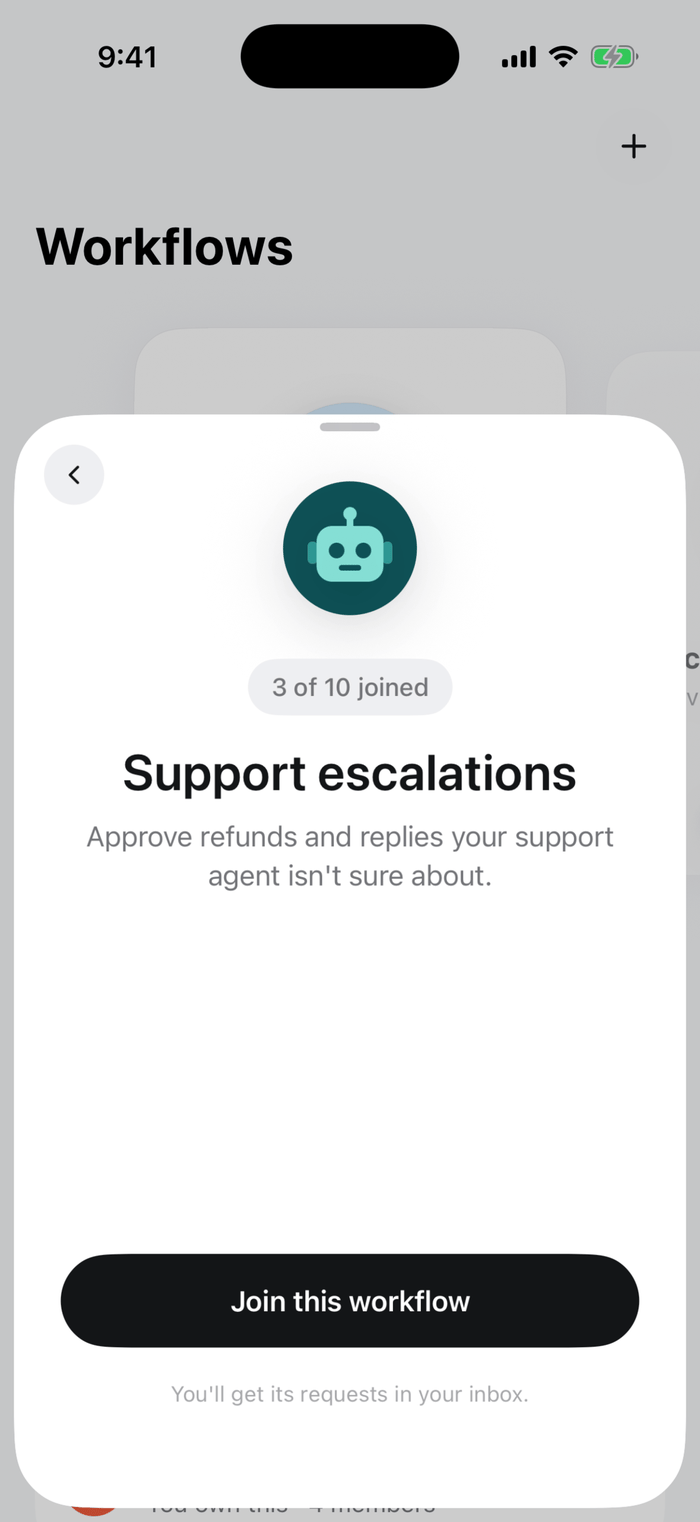
A workflow invitation in the app, Support escalations, 3 of 10 joined, with a Join this workflow button

Joining with a code

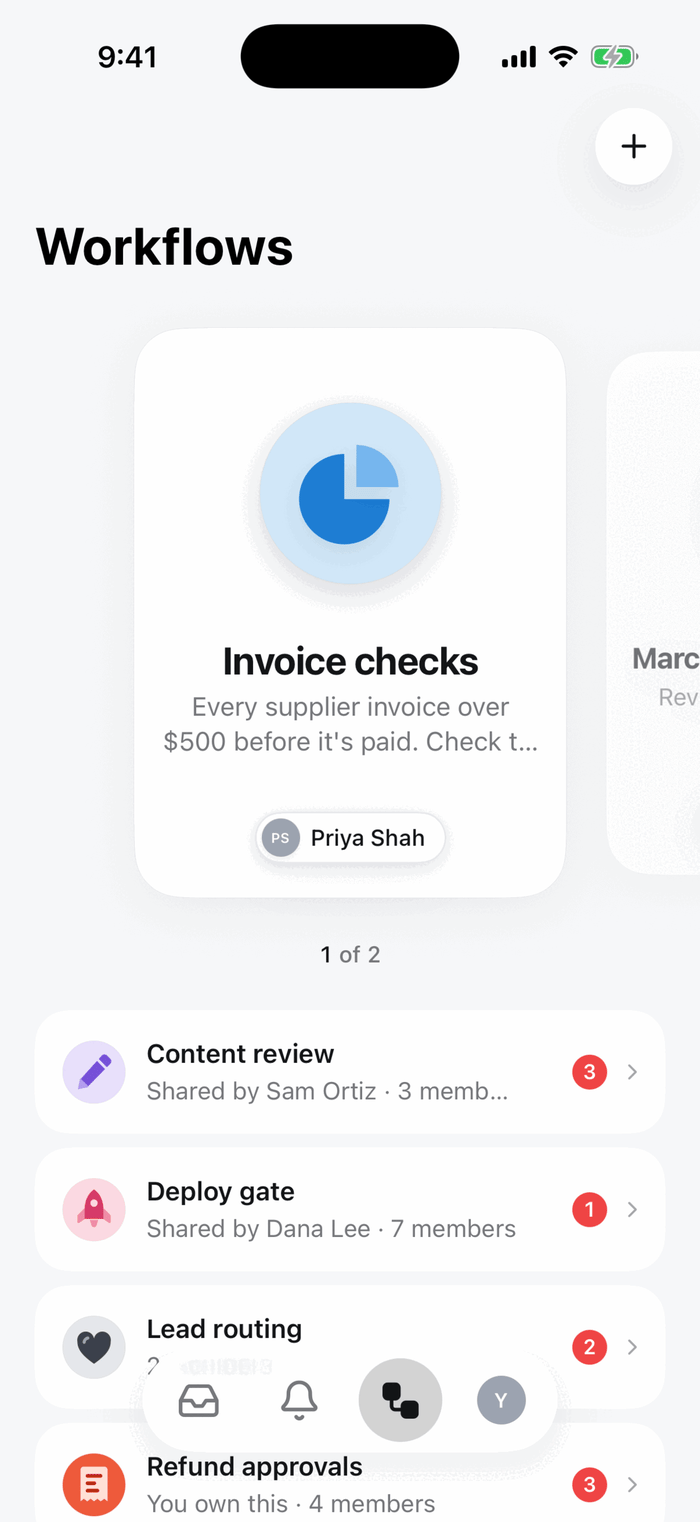
The Workflows tab listing workflows with their owner, member count and number of requests waiting

Workflows you review

Answer

The Inbox lists what is waiting for you, with the workflow, the question and the time left. Tap one to open it, answer, and tap Submit. The run continues straight away, and the app confirms your answer was sent.
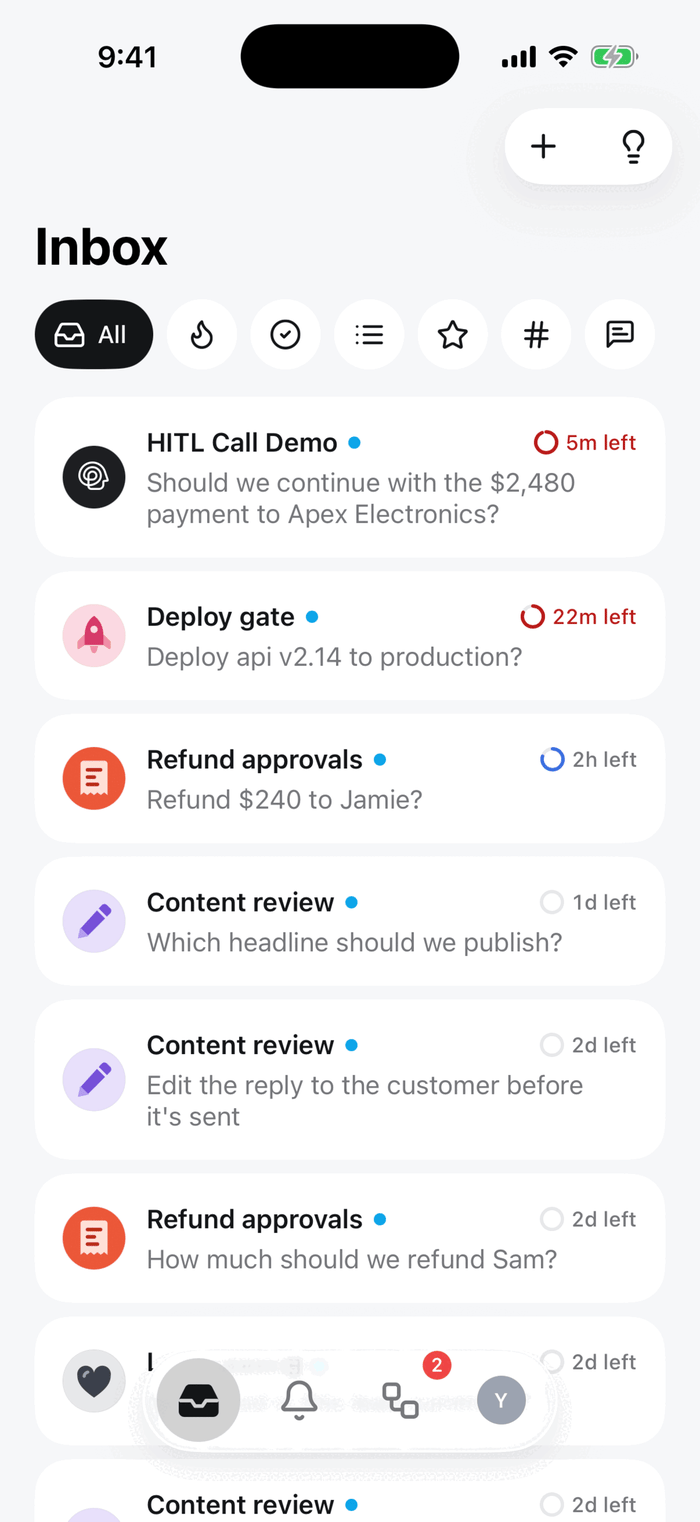
The app's Inbox listing requests from Deploy gate, Refund approvals and Content review with the time left on each

Inbox

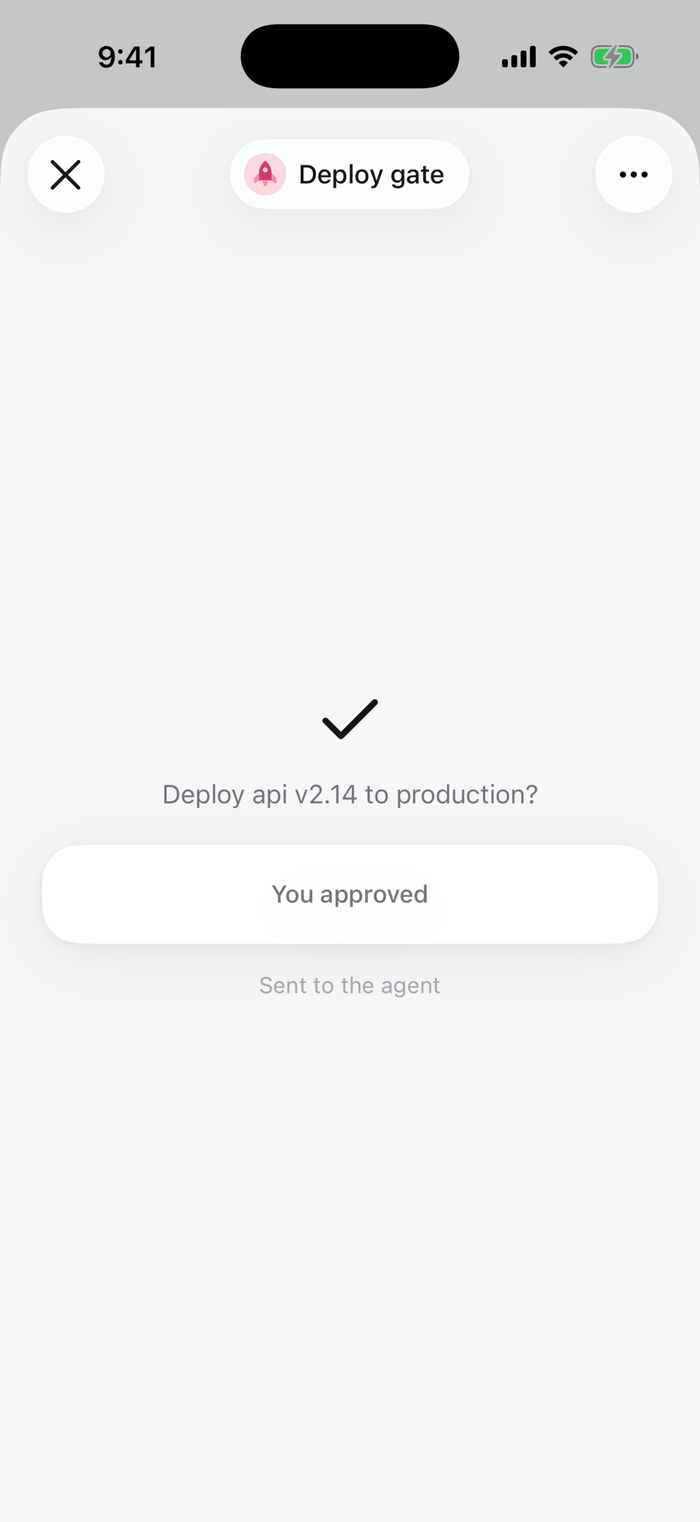
The answered screen: a check mark, Deploy api v2.14 to production?, You approved, Sent to the agent

After answering

Each answer type has its own controls:
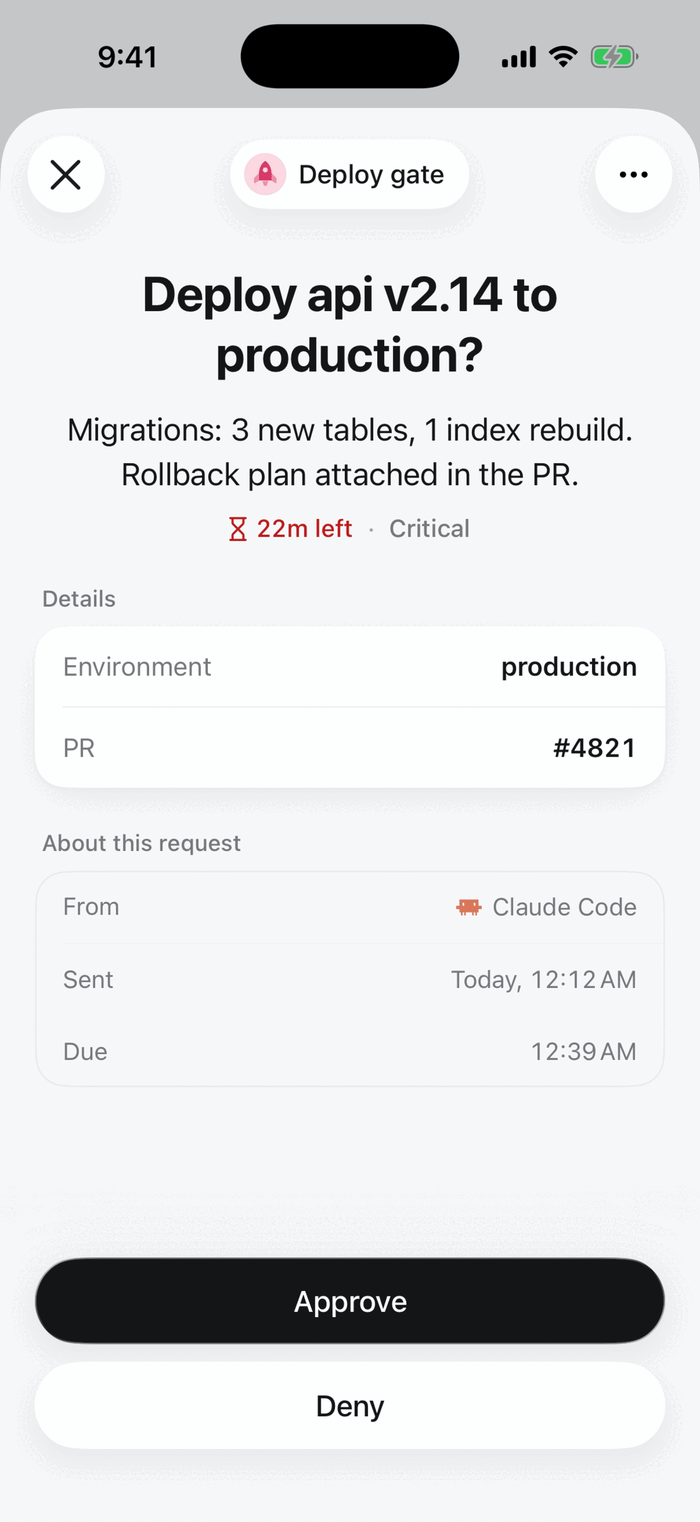
An Approve / Deny request: Deploy api v2.14 to production, with environment and PR details and Approve and Deny buttons

Approve / Deny

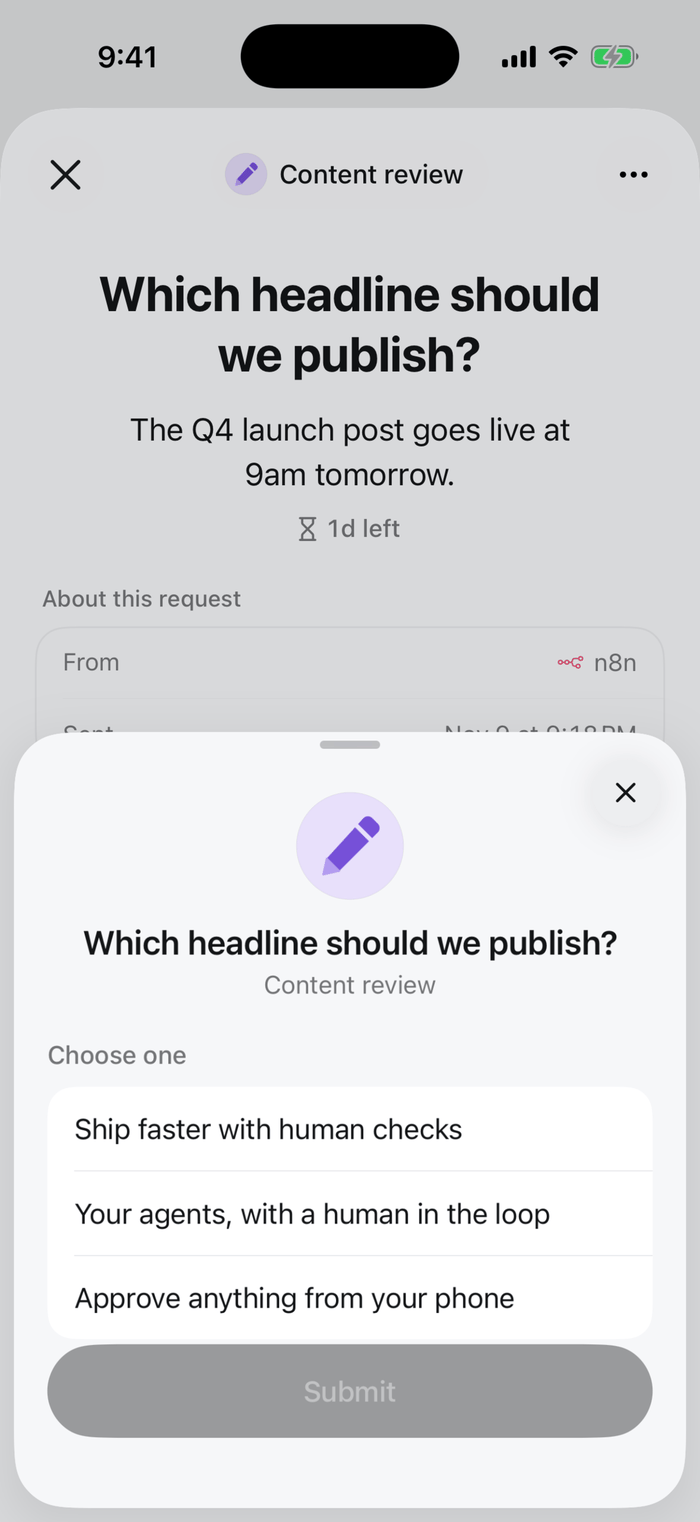
A single choice request with three headline options

Single choice

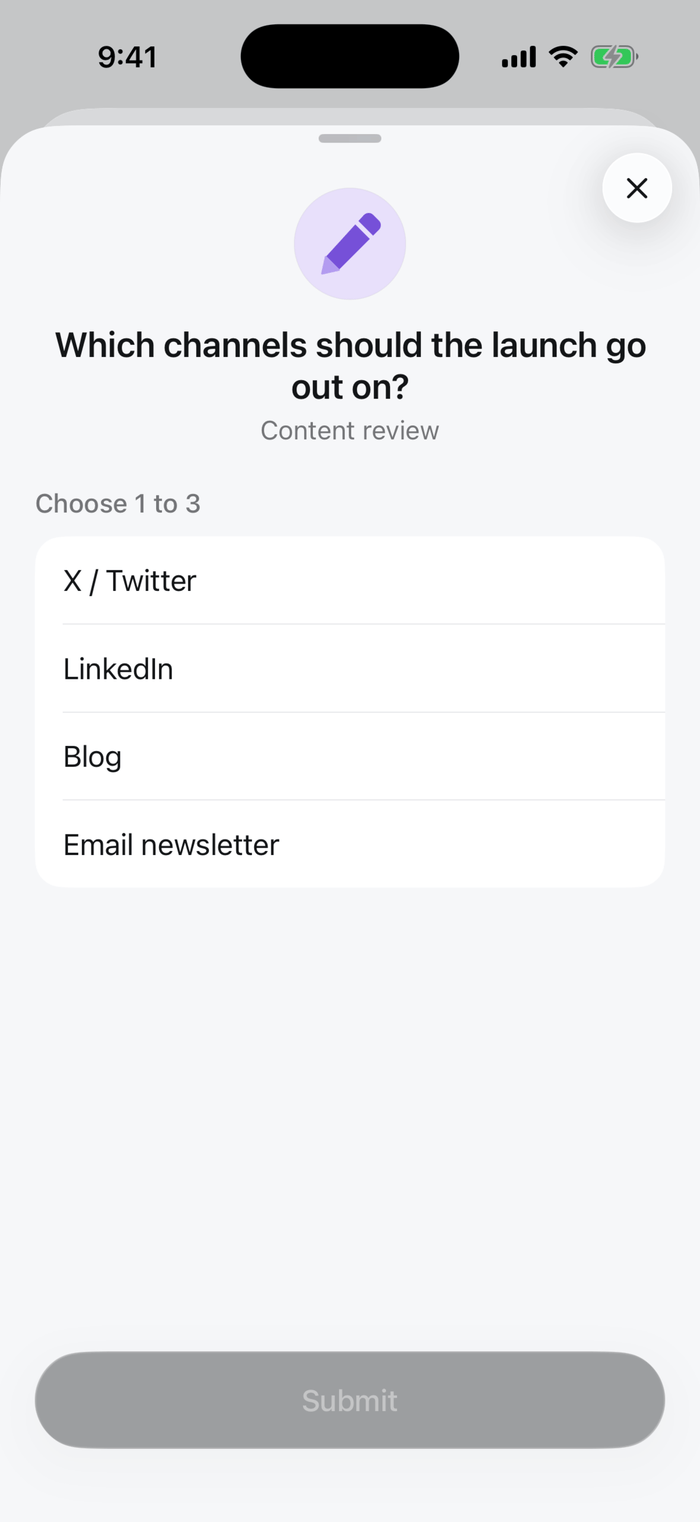
A multiple choice request: choose 1 to 3 channels for a launch

Multiple choice

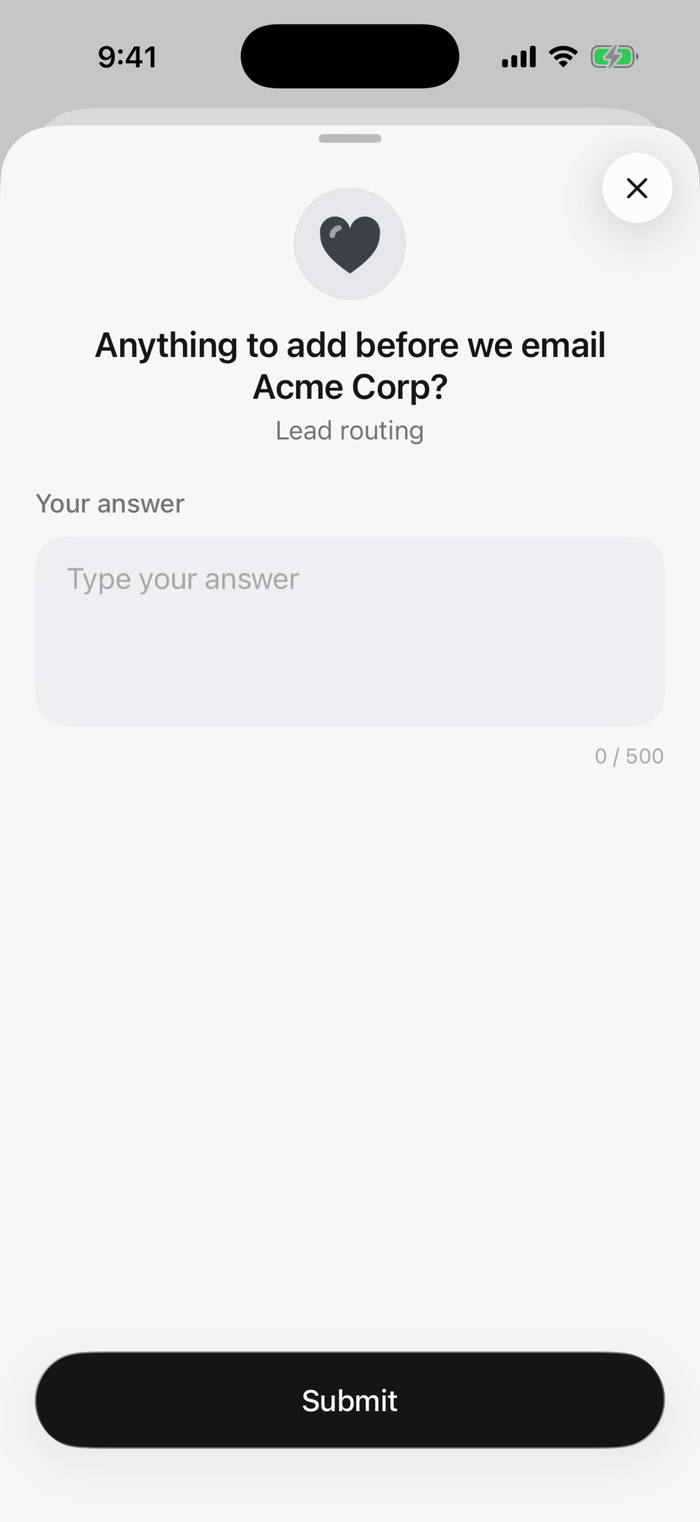
A text request with an empty answer box and a character counter

Text

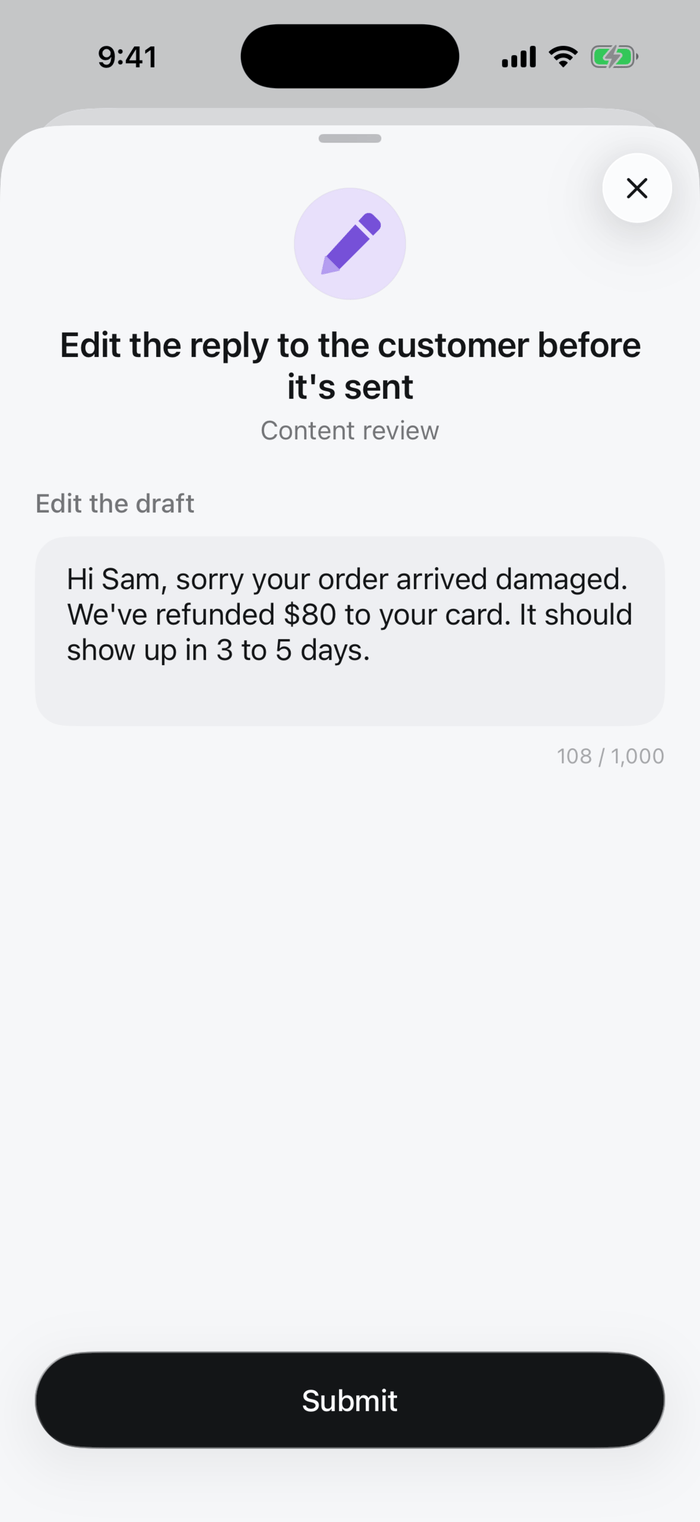
An editable draft: a customer reply pre-filled for the reviewer to edit

Editable draft

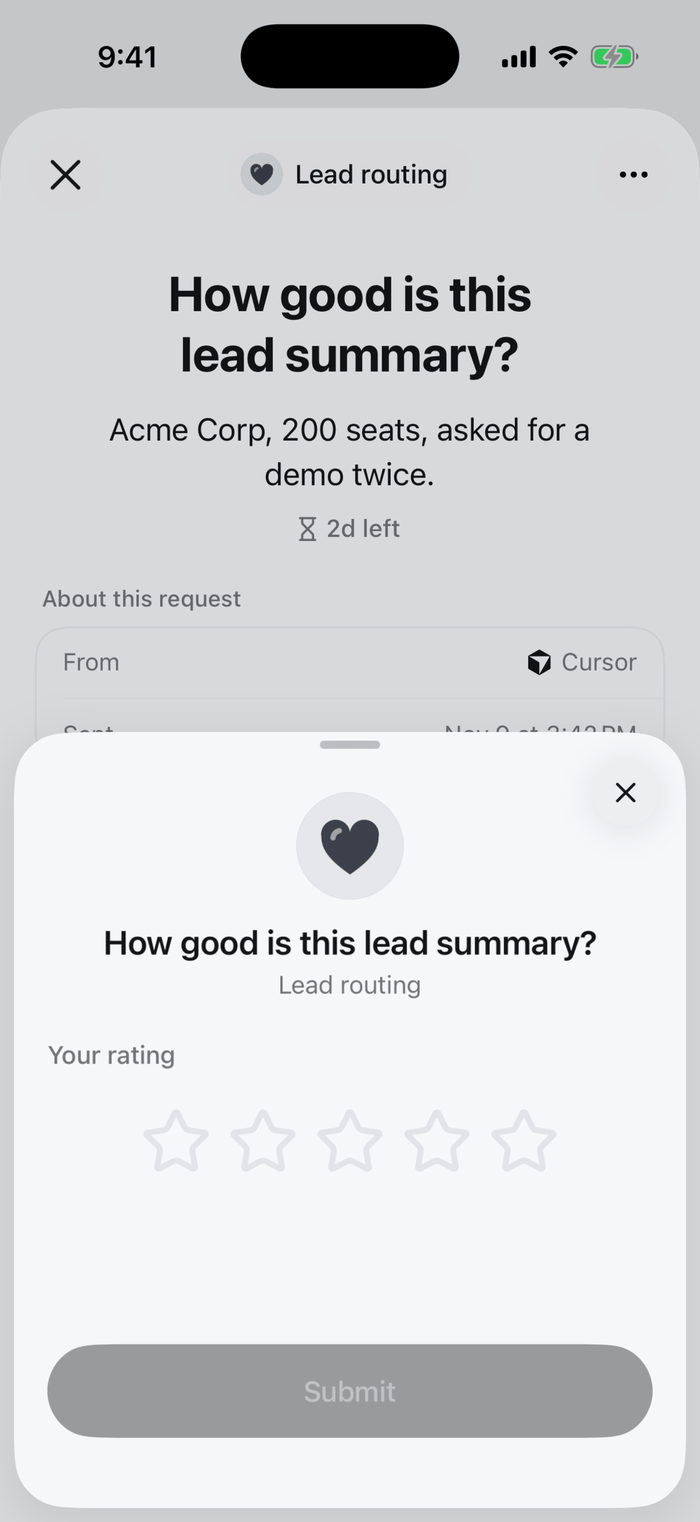
A rating request: How good is this lead summary, with five stars

Rating

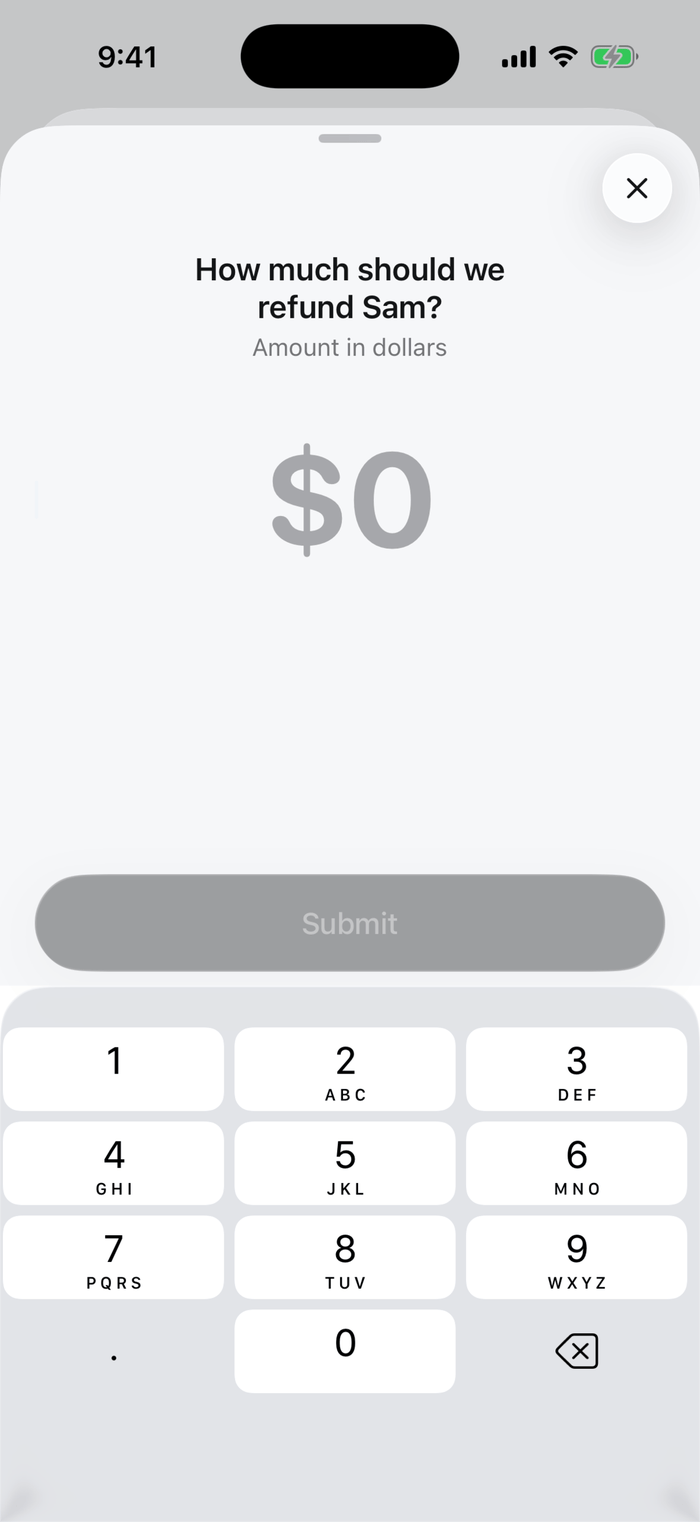
A number request: How much should we refund Sam, with a number pad

Number

History

The Activity tab lists what you and the other reviewers answered, by day.
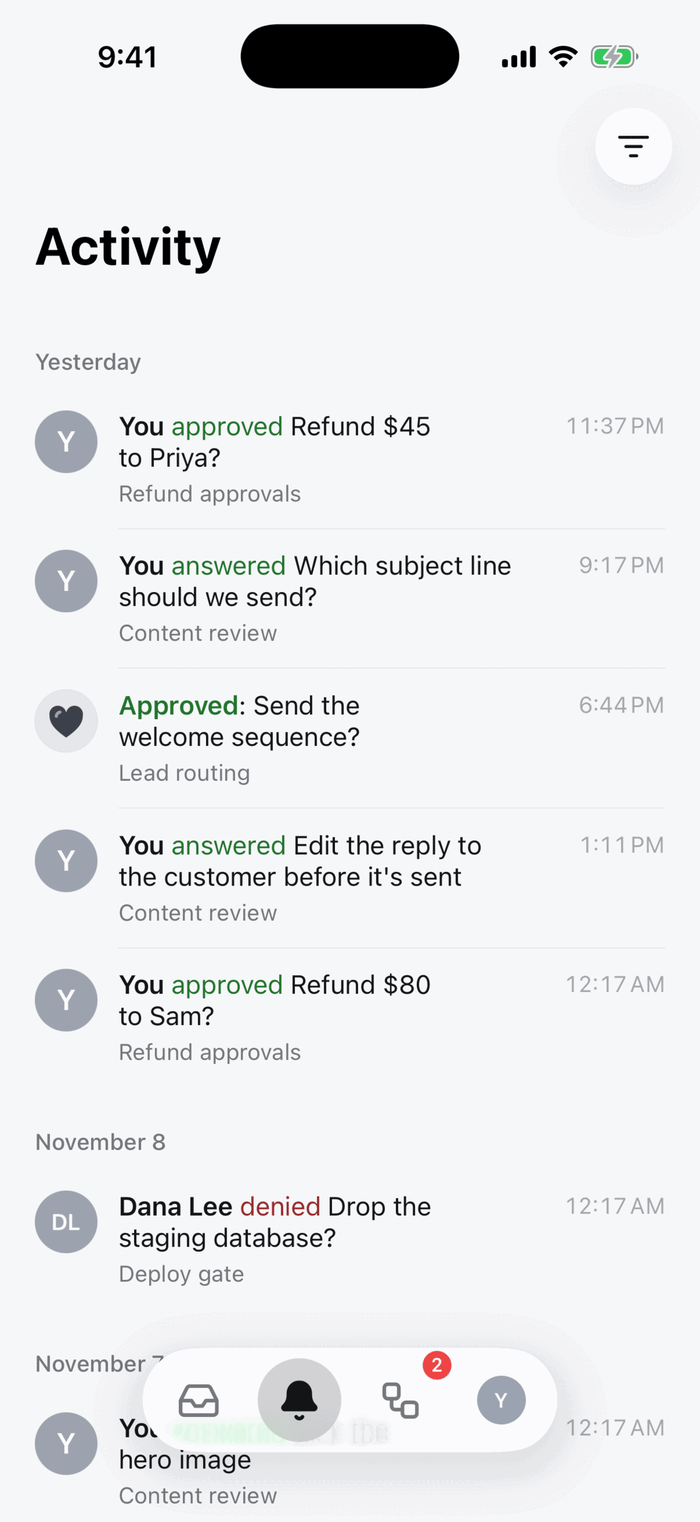
The Activity tab listing answers such as You approved Refund $45 to Priya and Dana Lee denied Drop the staging database

Activity

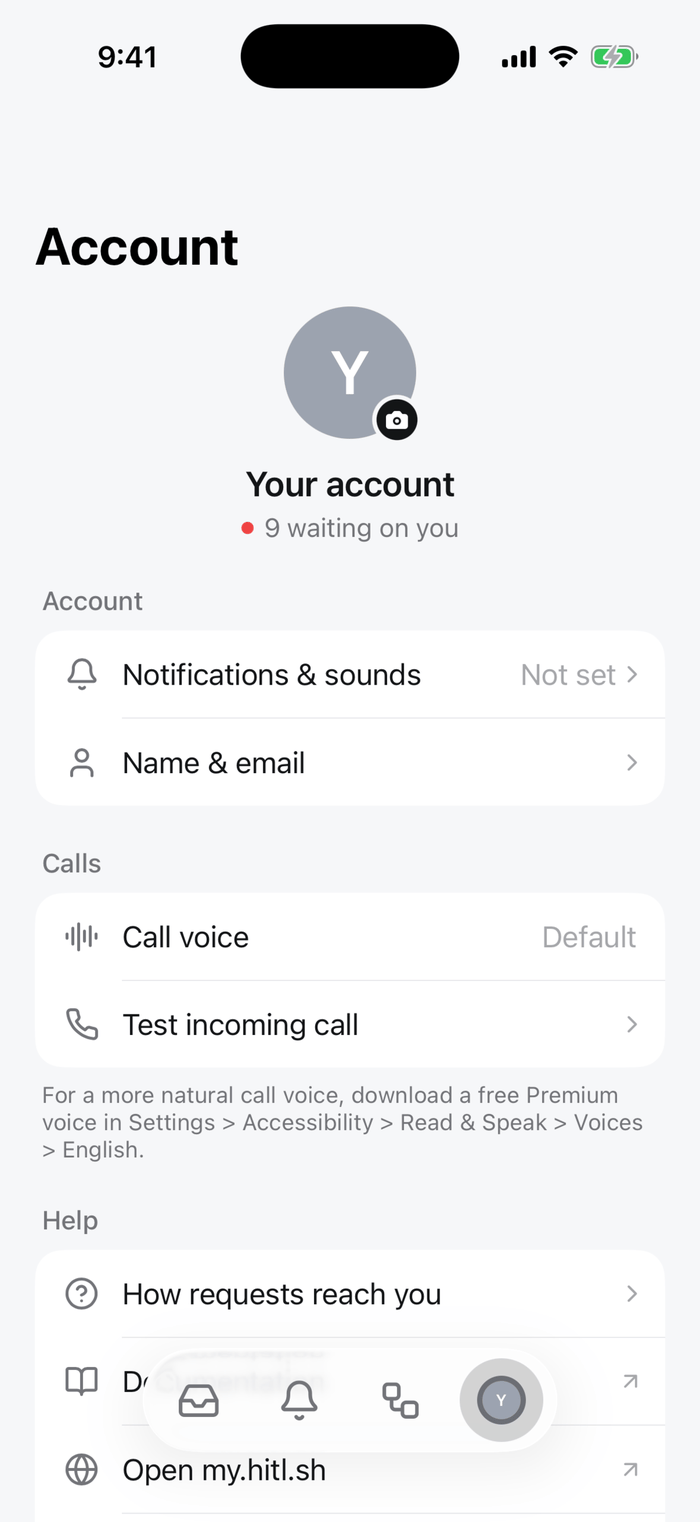
The Account screen with notification and call settings and help links

Account

Notifications and calls

Allow notifications when the app asks, or later in Account → Notifications & sounds. A review step can also call you for urgent requests: answer the call and say your decision. Set the voice under Account → Calls.