

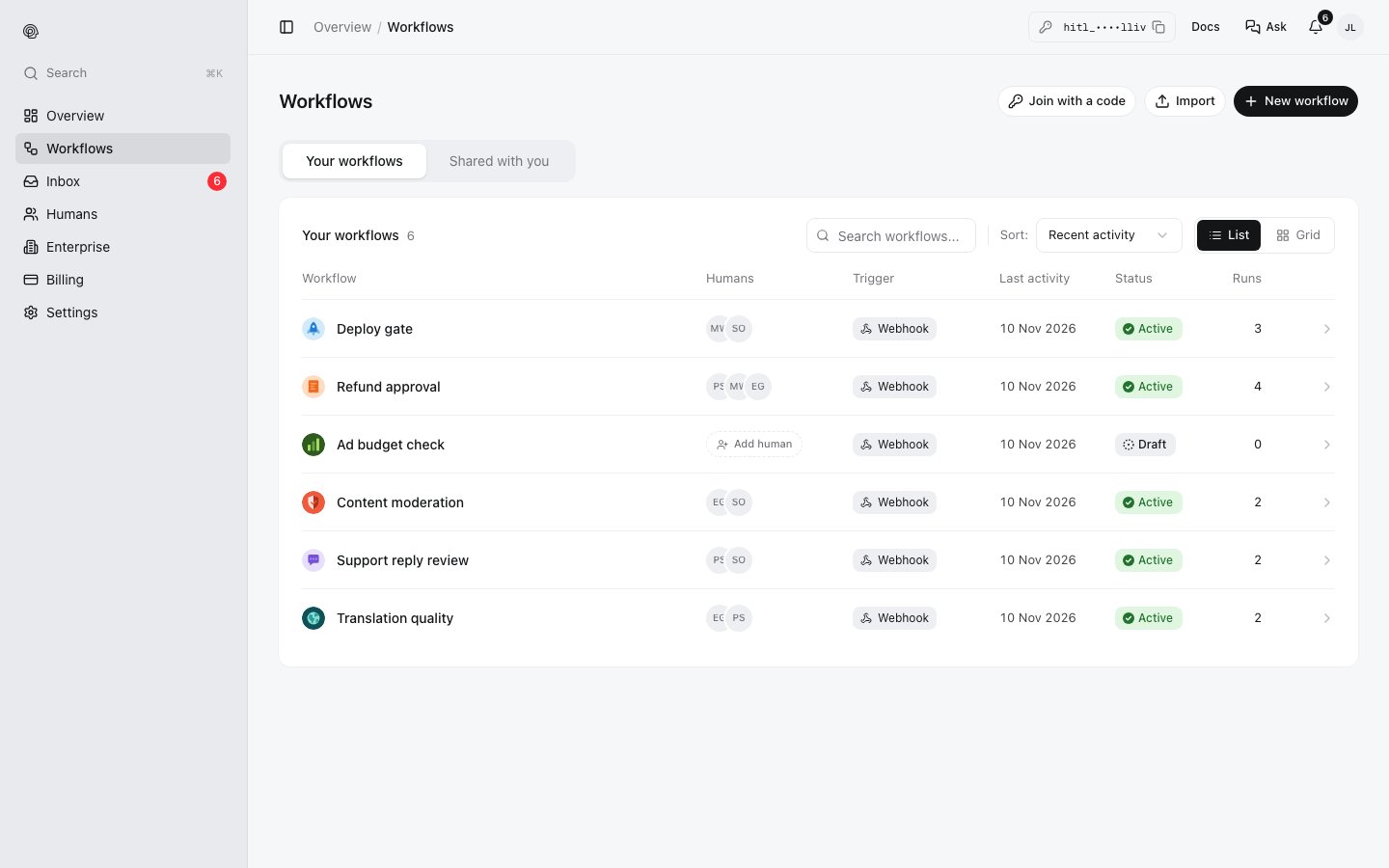
Start a workflow
Click New workflow. Describe it in a sentence and HITL drafts the steps, start from an example (refunds, email replies, social posts, change requests, …), or click I’ll design it myself for an empty canvas with a Start and an End.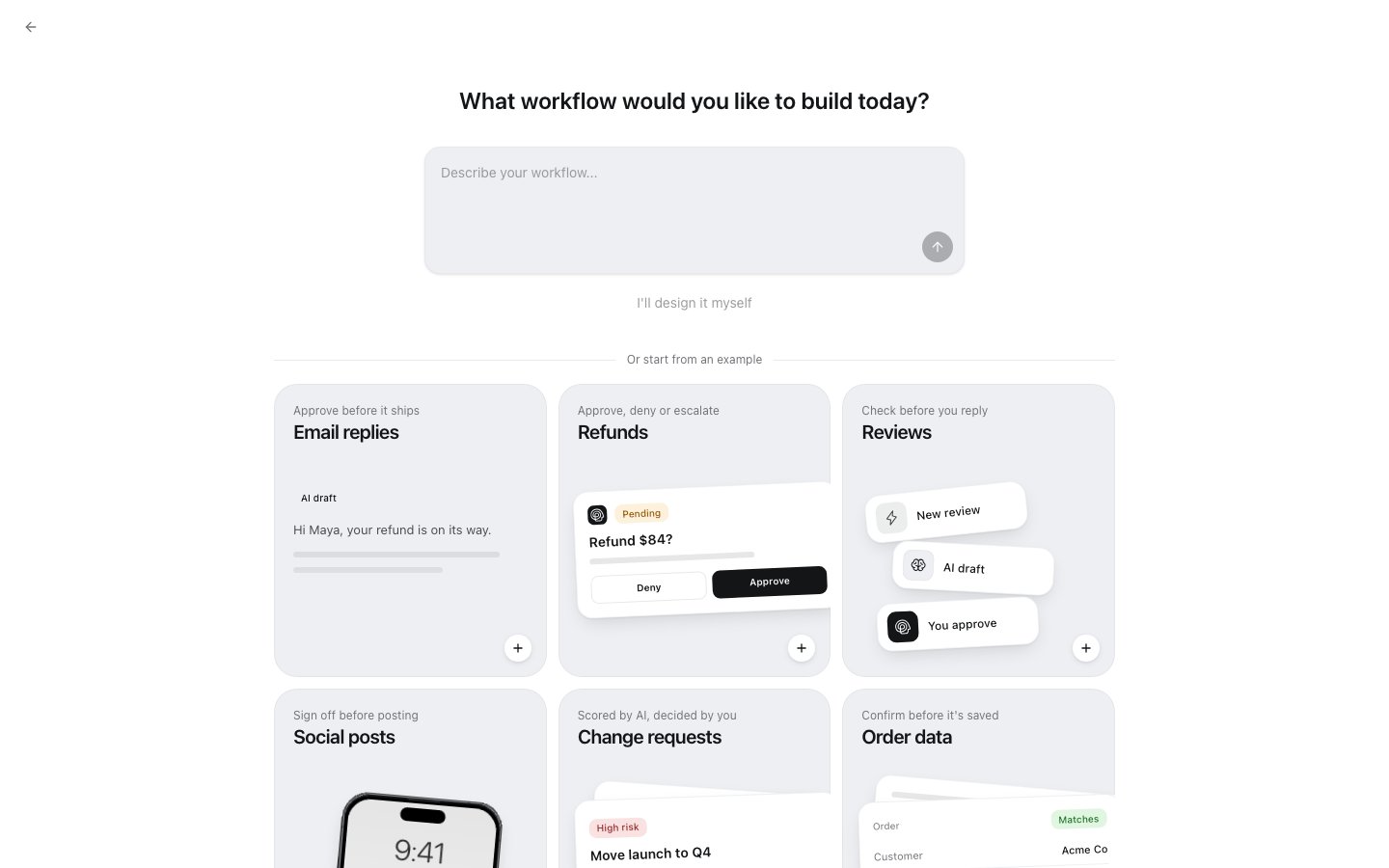
The canvas
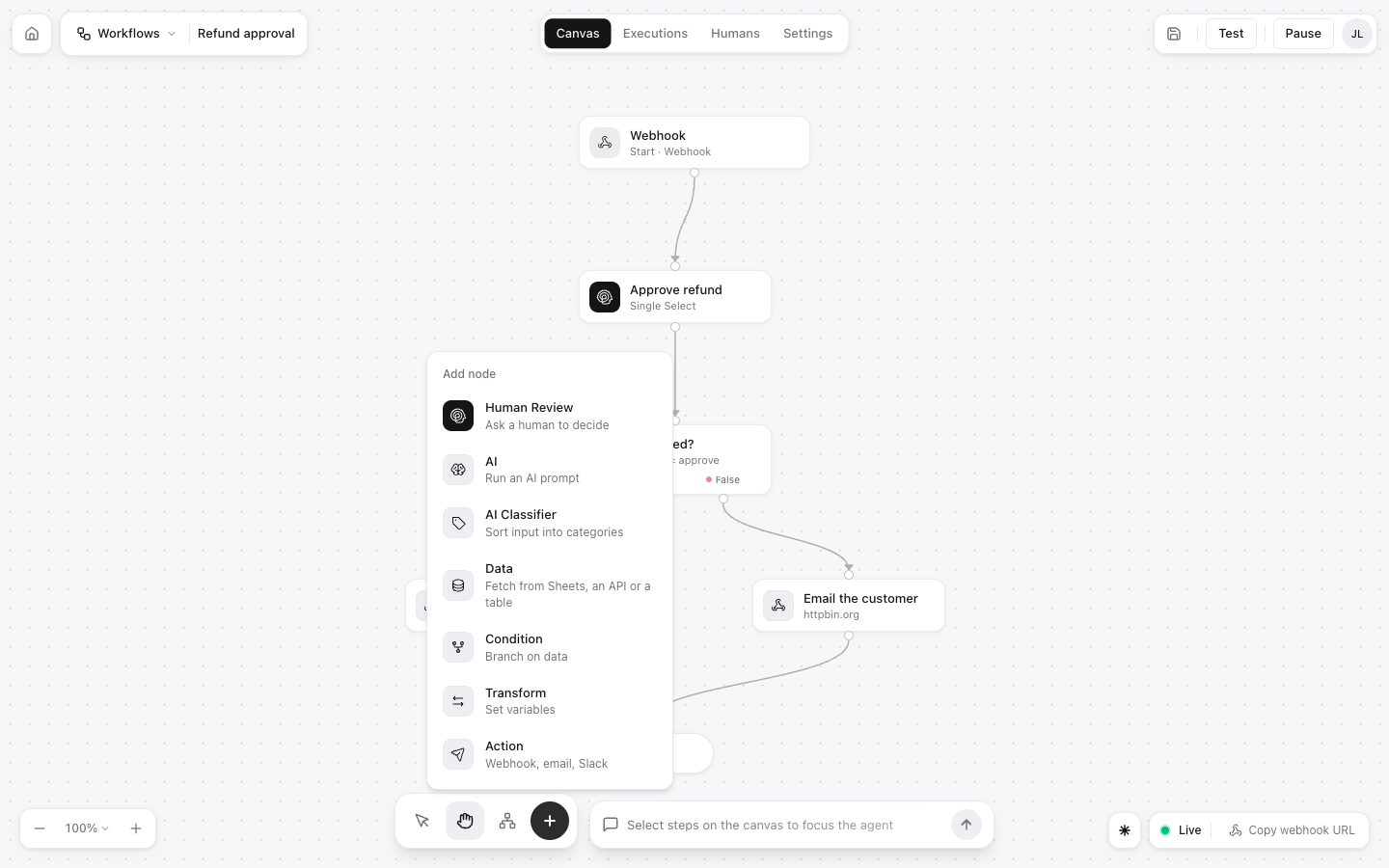
The top bar has four tabs, Canvas, Executions, Humans and Settings, and on the right Test, Activate (or Pause when live) and save.- Click a step to open its settings on the right.
- Drag from a step’s handle to another step to connect them. A condition has a True and a False handle.
- The toolbar at the bottom: select, pan, Auto align, and + to add a step. Zoom with the controls on the left or ⌘+ / ⌘−.
- The box next to the toolbar is the workflow assistant: select steps and ask it to change them.
The trigger
Click Start to choose how runs begin: Webhook, Email, Schedule, Manual or Google Sheets. A webhook trigger shows its URL and a Test payload: sample JSON used by Test and by the review step’s phone preview. Fields you add there become insertable chips in later steps.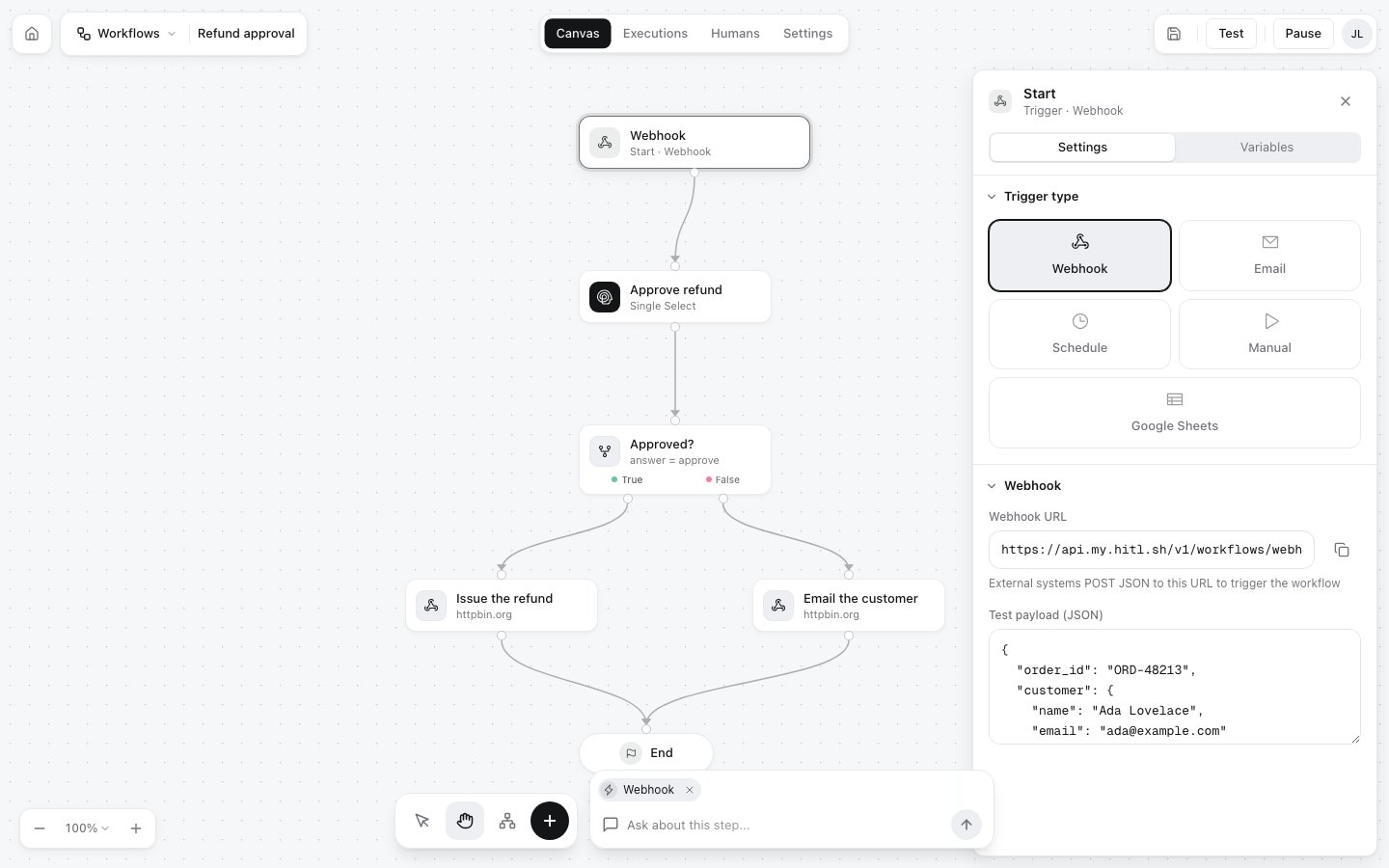
Review steps
Select a review step, then Edit request to write the question and pick the answer type, and Reviewers to say who answers and where. The phone preview shows exactly what reviewers will see.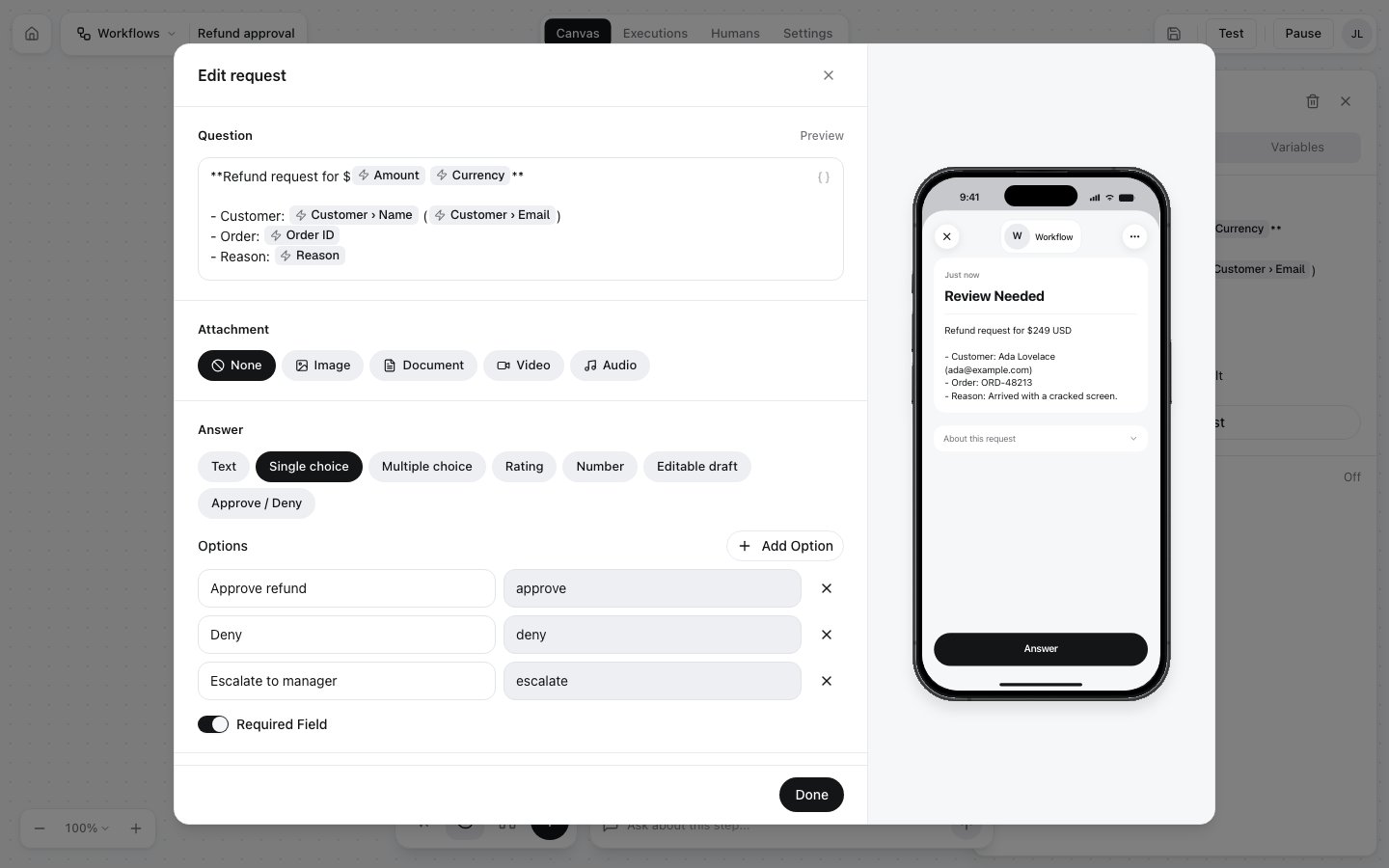
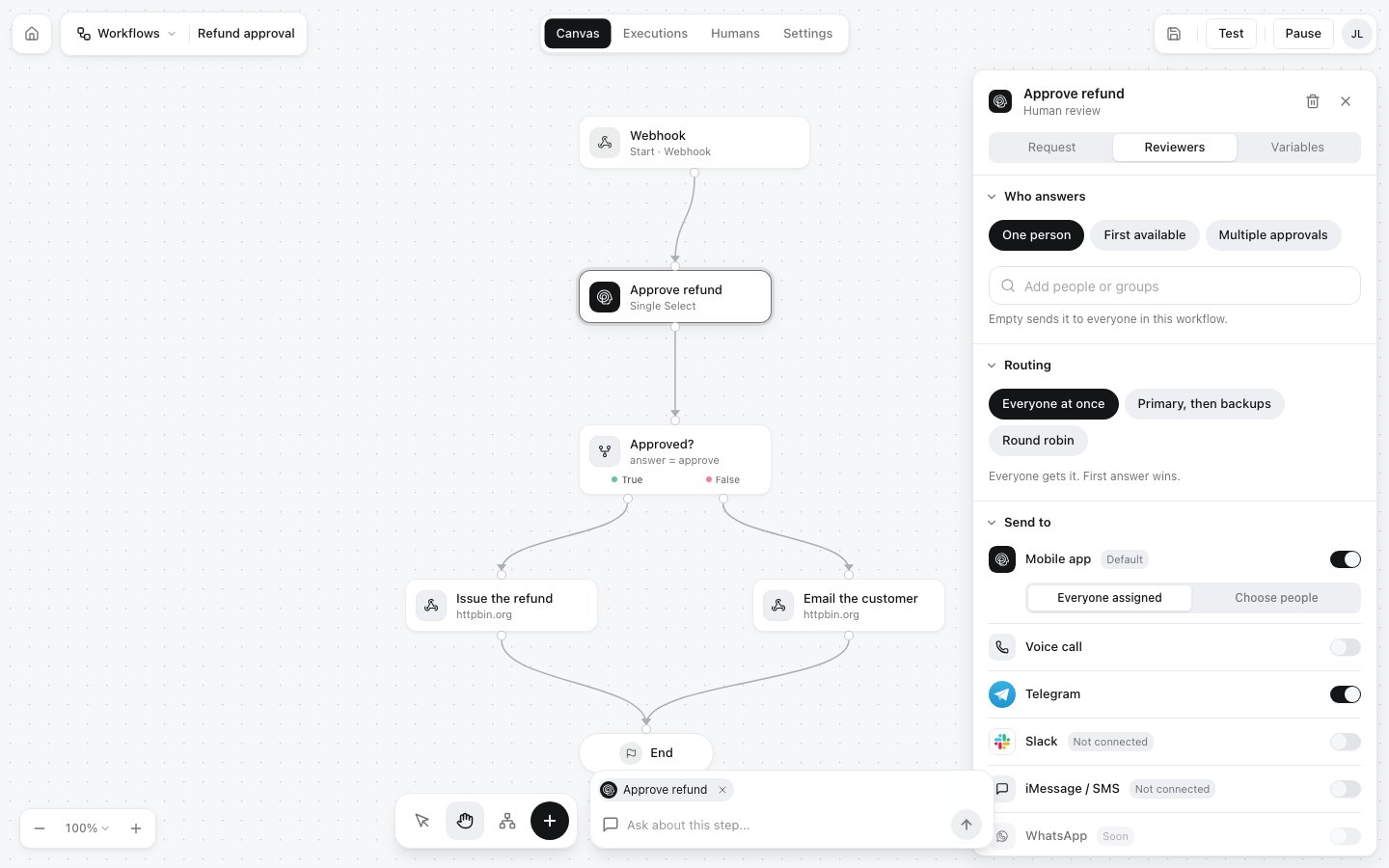
Test and activate
- Test runs the workflow with the trigger’s test payload. Review steps ask people as usual; action steps only log what they would send.
- Activate checks the workflow and makes it live. If something is missing, such as a review step without a question, it says what to fix. Pause stops new runs.
Executions
Every run, newest first, with its status (Waiting for review, Completed, Failed, …). Expand one to see its input, each decision and what each action sent and got back.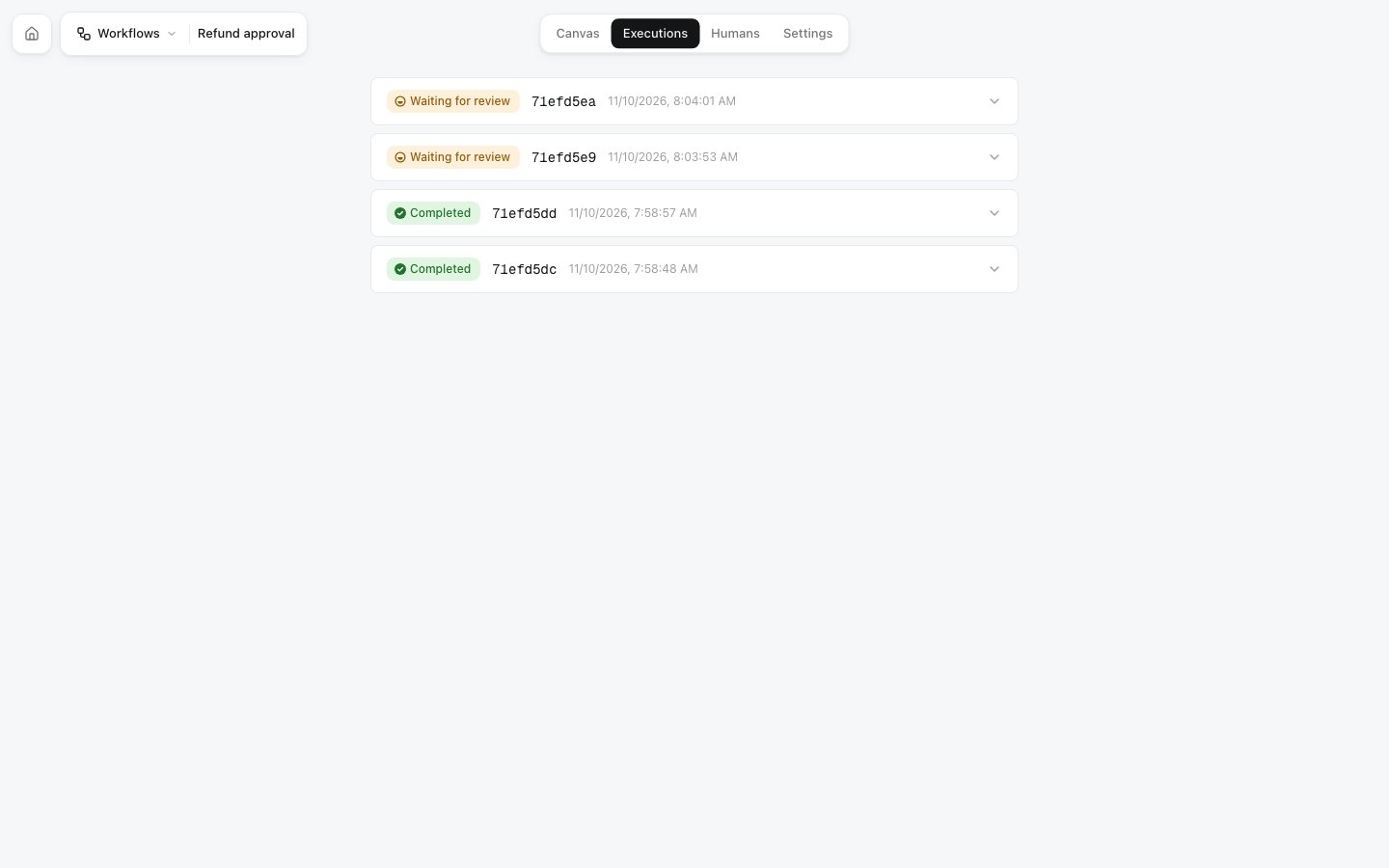
Humans
The workflow’s reviewers, its join code, link and QR code, and an invite-by-email form. See Reviewers.Settings
The icon and colour (shown in lists and on reviewers’ phones), name, description, status, trigger type, webhook URL, and Delete this workflow.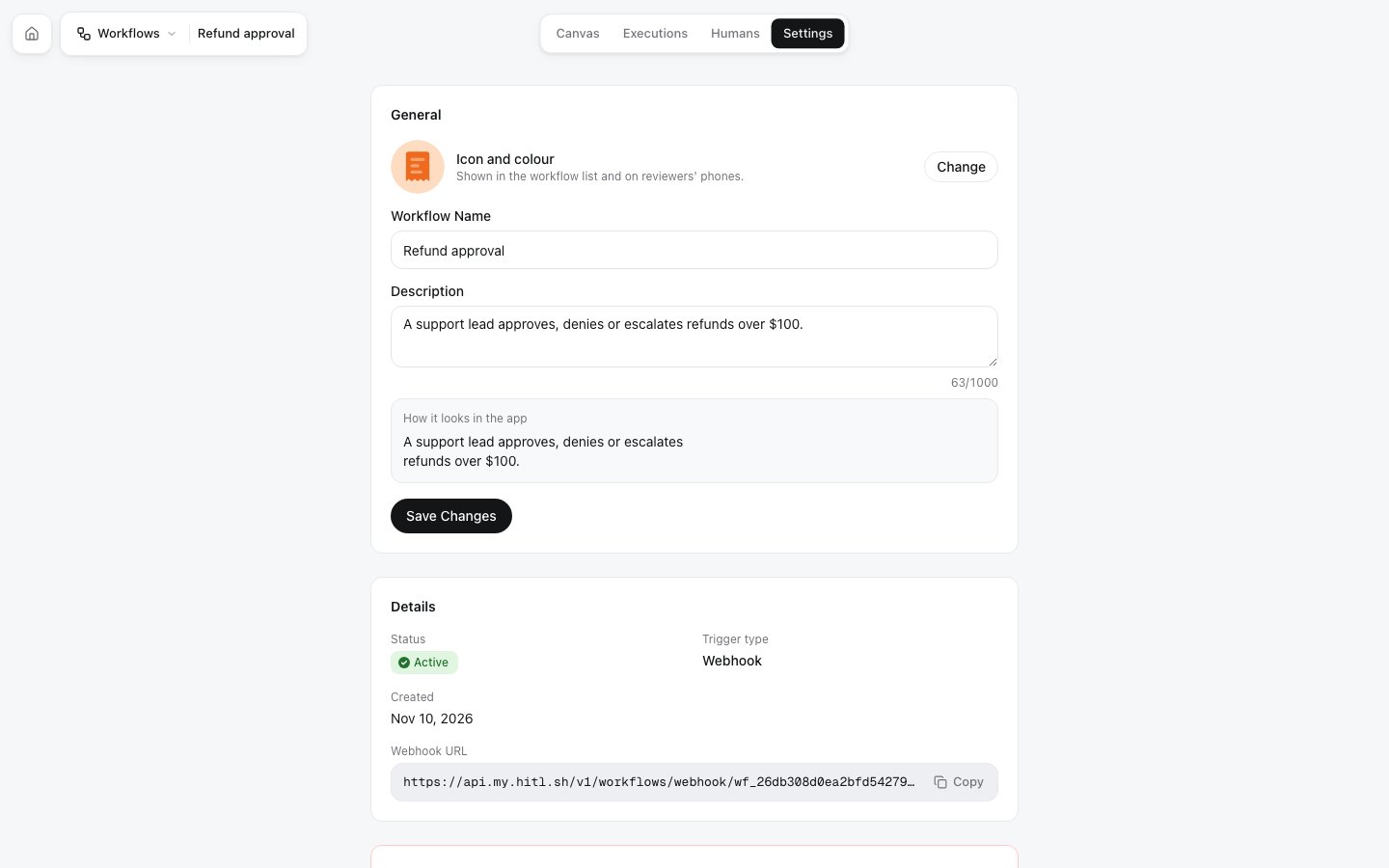
Building with an agent
Connect Claude in the editor’s top bar prints a command (npx hitl-workflow '<link>') that lets Claude Code read and edit the workflow you have open, live: you see its changes on the canvas as it makes them. An agent can also build workflows through the API or MCP (create_workflow, invite_to_workflow, activate_workflow).